Quick & Easy Setup
Most Insignia TV remotes pair with your TV in just minutes. Once connected, they work instantly—no complicated installation required.
Voice Control with Alexa
Search for shows, launch apps, and control your TV using voice commands. The built-in voice feature makes navigation faster and more convenient.
Simple, User-Friendly Design
With responsive buttons and an intuitive layout, Insignia TV remotes are easy to use for all ages. Comfortable in hand and built for everyday reliability.
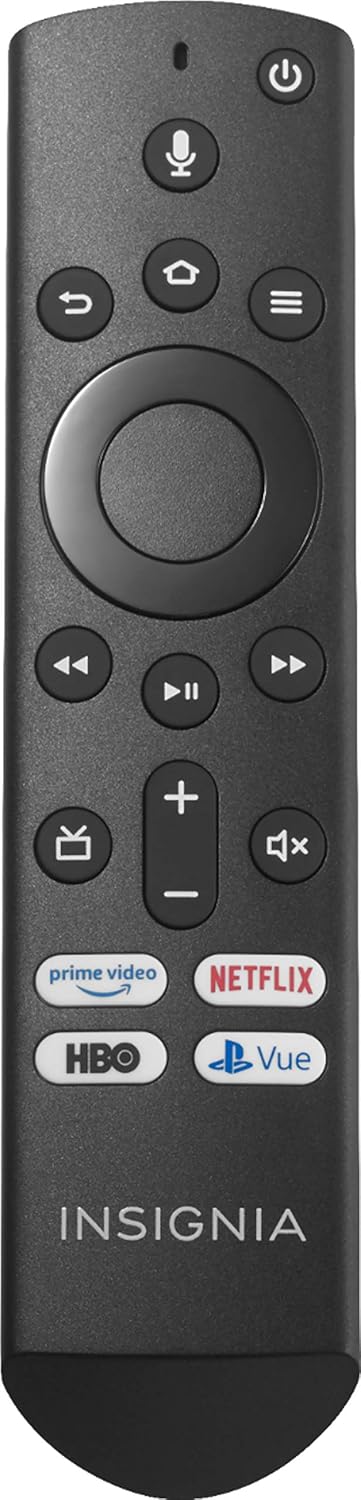
Insignia TV Remote
Insignia – Replacement Voice Remote with Alexa for Insignia and Toshiba Fire TV Edition Televisions
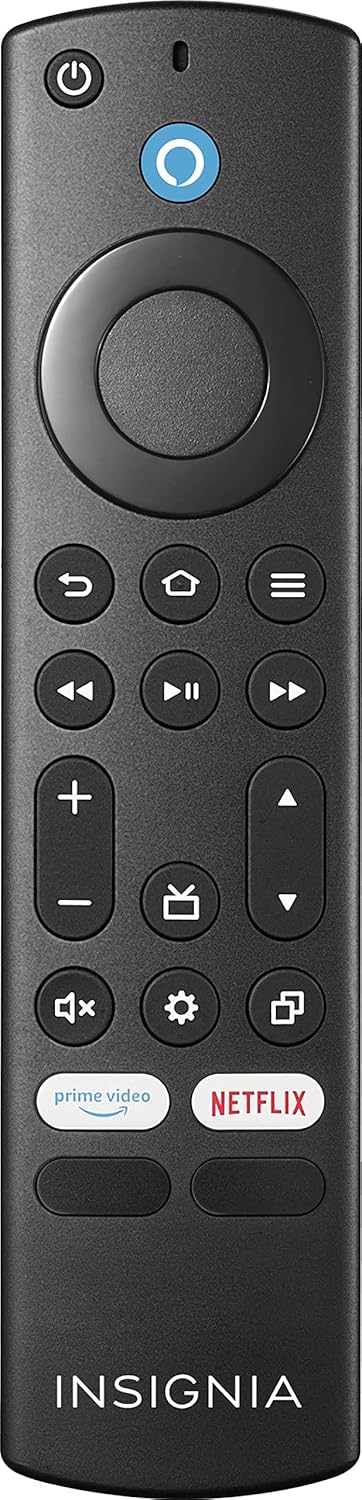
Insignia TV Remote
Insignia – Fire TV Replacement Remote for Insignia and Toshiba – Black
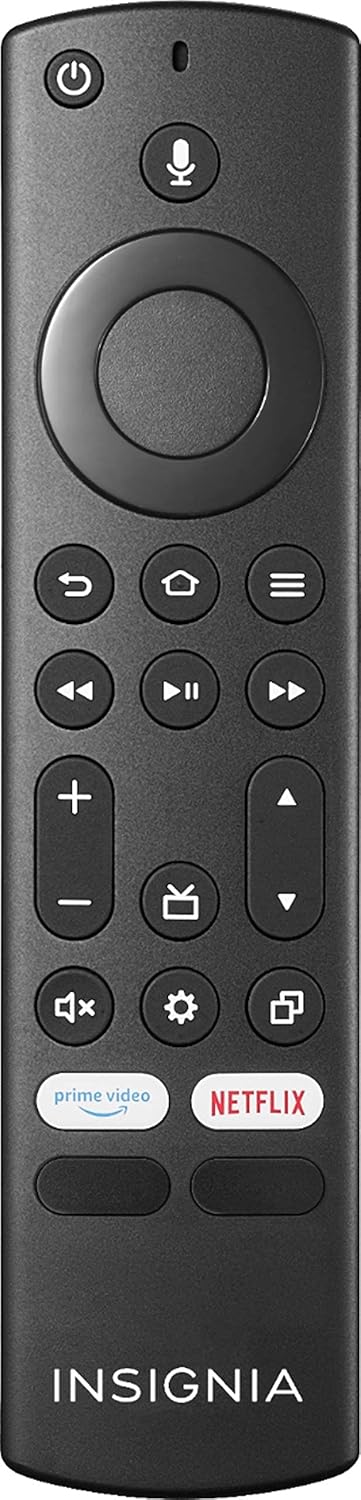
Insignia TV Remote
Insignia Remote (NS-RCFNA-21 Rev E) with Microphone for Fire TV – Black (Renewed)
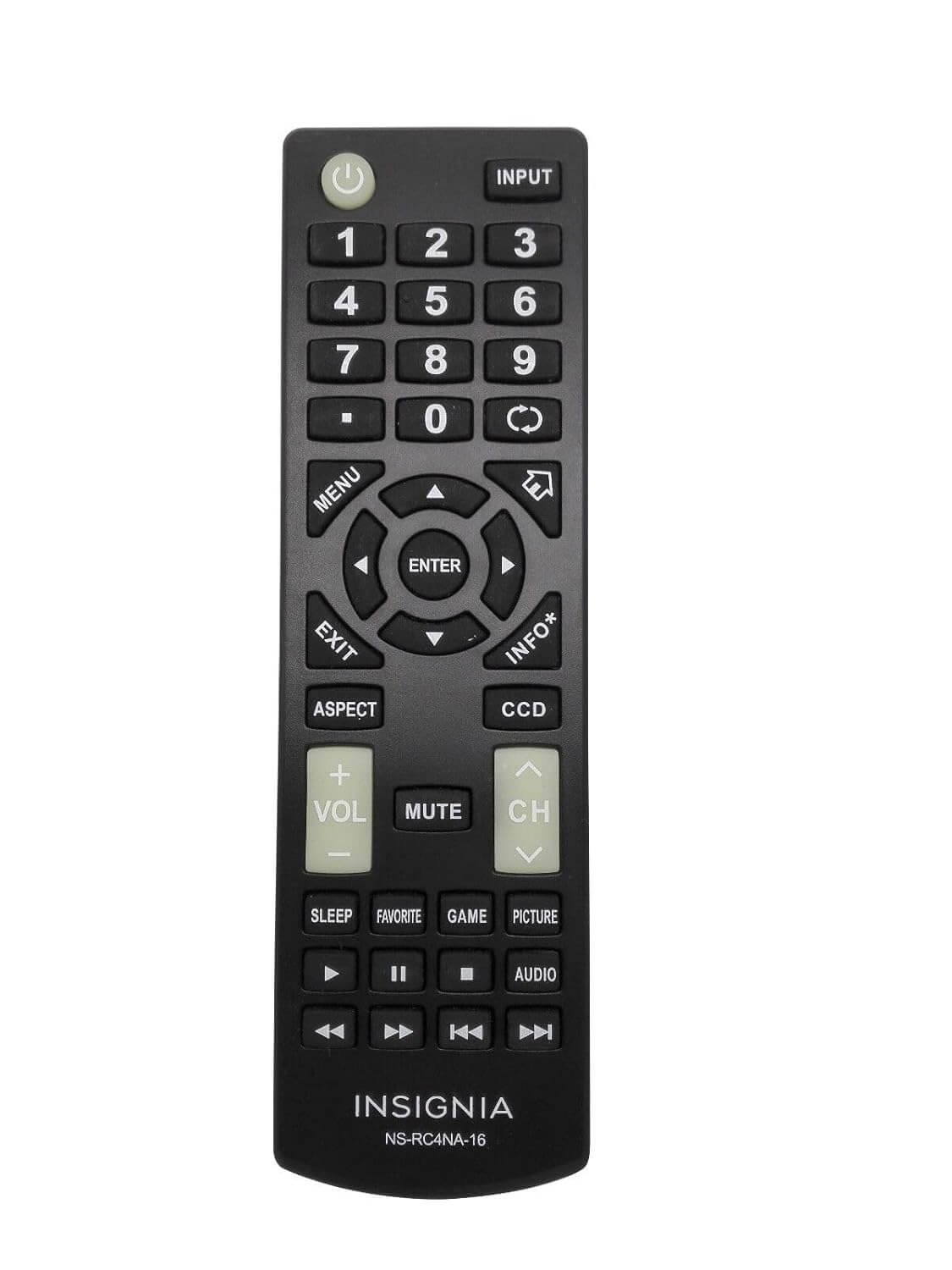
Insignia TV Remote
Insignia Tv Remote Control Insignia Ns-rc4na-16 Nsrc4na16 LED Tv Remote Control for Ns-55d420na16 Ns-60e440na16 Ns-60e440mx16 Ns-28dd220na16 Ns-24d420na16
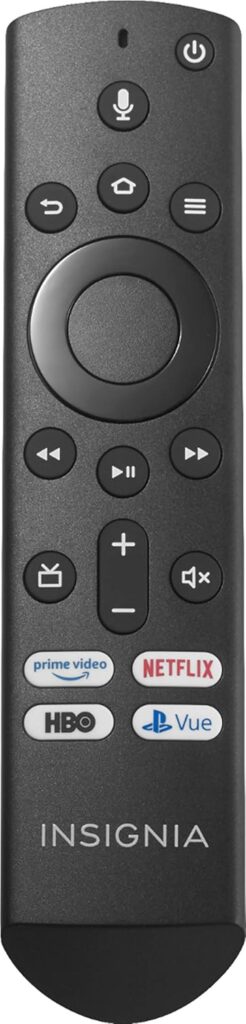
Insignia TV Remote Guide: Replacement Voice Remote with Alexa for Fire TV
If you’ve lost or damaged your original remote, the Insignia TV Remote replacement is a simple and reliable solution. The Insignia Replacement Voice Remote with Alexa for Insignia and Toshiba Fire TV Edition Televisions is designed to restore full control of your TV—with voice commands, quick navigation, and seamless compatibility.
In this guide, we’ll cover features, setup, compatibility, and why this remote is one of the best replacement options available.
What Is the Insignia TV Remote Replacement?
The Insignia Replacement Voice Remote with Alexa is an official-style remote designed for Insignia and Toshiba Fire TV Edition televisions. It offers the same core functionality as the original remote, including:
- Voice control with Alexa
- Quick access to streaming apps
- Simple navigation and responsive buttons
It’s ideal for users who want a plug-and-play replacement without sacrificing features.
Key Features of the Insignia Voice Remote
1. Built-In Alexa Voice Control
With Alexa integration, you can control your TV using voice commands. Simply press the voice button and:
- Search for movies and TV shows
- Launch apps like Netflix or Prime Video
- Control playback (pause, rewind, fast-forward)
- Check weather, news, or smart home devices
This makes browsing faster and more convenient than traditional navigation.
2. Easy Pairing & Setup
Setting up the Insignia TV remote is quick and straightforward:
- Turn on your TV
- Insert batteries into the remote
- Press and hold the Home button for 10–15 seconds
- Follow on-screen instructions
Most users can pair the remote in just a few minutes.
3. Seamless Compatibility
This remote is specifically designed for:
- Insignia Fire TV Edition TVs
- Toshiba Fire TV Edition TVs
It ensures full functionality, unlike many generic remotes that may lack voice control or advanced features.
4. User-Friendly Design
The remote features:
- Responsive, well-spaced buttons
- Intuitive layout for easy navigation
- Comfortable grip for everyday use
Whether you’re tech-savvy or not, it’s simple to operate.
5. Reliable Performance
Unlike cheaper alternatives, this remote delivers consistent performance:
- Stable connection with your TV
- Accurate voice recognition
- Durable build quality
It’s designed to work just like your original remote—or better.
Why Choose a Replacement Insignia TV Remote?
Losing your remote can be frustrating, but replacing it with the right model makes all the difference. Here’s why this option stands out:
- Full feature support (including voice)
- No complicated setup or programming
- Designed specifically for Fire TV systems
- Better reliability than universal remotes
Common Issues & Troubleshooting
Remote Not Pairing
- Replace batteries with fresh ones
- Restart your TV
- Hold the Home button longer (up to 20 seconds)
Voice Control Not Working
- Make sure the remote has a microphone button
- Check internet connection (voice requires Wi-Fi)
- Re-pair the remote if needed
Delayed Response
- Move closer to the TV
- Remove any obstacles
- Restart both the TV and remote
Pros and Cons
Pros
- Alexa voice control included
- Easy and fast setup
- Works seamlessly with Fire TV Edition TVs
- Comfortable and intuitive design
- Reliable replacement for original remote
Cons
- Only compatible with specific Fire TV models
- Requires pairing (not instant plug-and-play for all users)
- Batteries not always included
Who Should Buy This Remote?
The Insignia TV replacement remote is perfect for:
- Users who lost or broke their original remote
- Fire TV users who want voice control
- Anyone tired of unreliable universal remotes
- Households needing a simple, easy-to-use solution
Insignia TV Remote vs Universal Remote
| Feature | Insignia Voice Remote | Generic Universal Remote |
|---|---|---|
| Voice Control | ✅ Yes | ❌ Usually No |
| Compatibility | ✅ Full (Fire TV) | ⚠️ Limited |
| Setup | ✅ Easy | ⚠️ Can be complex |
| Performance | ✅ Reliable | ⚠️ Inconsistent |
Looking for a reliable and easy way to control your Fire TV experience? The Insignia TV Remote is designed to deliver seamless performance, intuitive navigation, and convenient voice control for Insignia and Toshiba Fire TV Edition televisions. Whether your original remote is lost, damaged, or simply worn out, this replacement option helps you restore full functionality in minutes.
With quick pairing and support for both Bluetooth and infrared connectivity, the Insignia remote ensures stable performance and responsive control. The built-in microphone allows you to use voice commands to search for content, open apps, and manage playback—making your streaming experience faster and more enjoyable.
Its slim, ergonomic design fits comfortably in your hand, while the lightweight build makes it perfect for everyday use. Whether you’re browsing menus or binge-watching your favorite shows, this remote provides the convenience and reliability you need.
Learn more about compatible devices, features, and replacement options on our website. Visit insignia tv for a complete guide and expert insights on choosing the best remote for your setup.
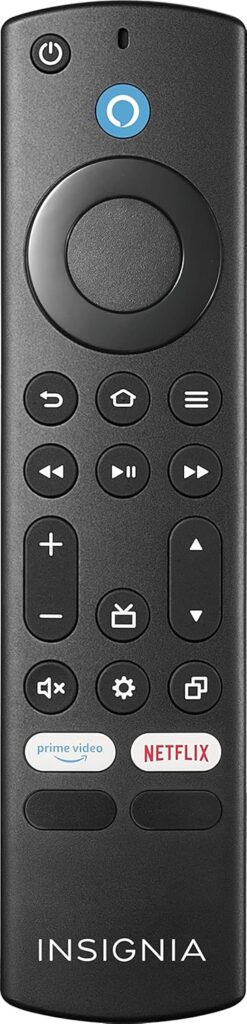
Insignia TV Remote: The Perfect Replacement for Seamless Fire TV Control
If you’ve lost or damaged your original remote, the Insignia TV Remote is the ideal solution to restore full control of your entertainment experience. Designed specifically for Insignia and Toshiba Fire TV Edition televisions, this replacement remote delivers the same reliable performance, intuitive navigation, and voice control features you expect—without the hassle.
Effortless Setup and Compatibility
This Insignia Fire TV replacement remote pairs quickly and easily with your existing device, so you can get back to streaming in minutes. It’s fully compatible with Insignia and Toshiba Fire TV Edition TVs, ensuring smooth integration and instant usability—no complicated setup required.
Full Voice Control Functionality
Enjoy the convenience of built-in voice control, just like your original remote. With integrated voice capabilities, you can search for content, launch apps, and control playback using simple voice commands. This makes browsing platforms like Netflix, Prime Video, and Hulu faster and more enjoyable.
Advanced Connectivity: Bluetooth + Infrared
Equipped with both Bluetooth and infrared technology, this remote ensures stable and responsive performance. Bluetooth allows for seamless pairing and control without direct line-of-sight, while infrared support ensures compatibility with traditional TV functions.
Sleek, Comfortable Design
The remote features a slim, lightweight build that fits comfortably in your hand. Its ergonomic design makes it easy to use for extended viewing sessions, while the responsive buttons provide precise control.
Reliable Everyday Performance
Powered by two AAA batteries (not included), this remote is built for consistent, long-lasting use. It’s a dependable replacement that keeps your TV experience uninterrupted.
Key Features at a Glance:
- Quick and easy pairing with Insignia & Toshiba Fire TV Edition TVs
- Full voice control for hands-free navigation
- Dual connectivity: Bluetooth and infrared
- Lightweight, ergonomic design for comfort
- Powered by 2 AAA batteries
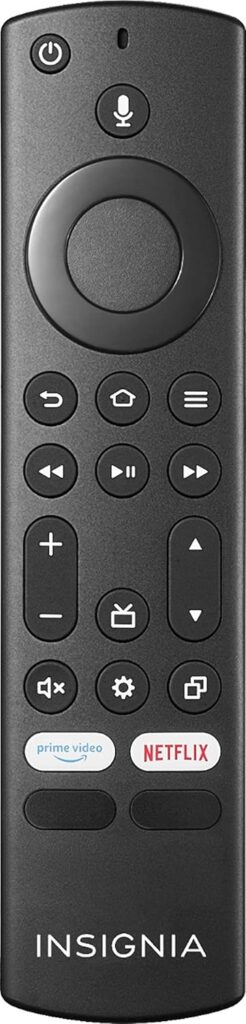
Insignia TV Remote (NS-RCFNA-21 Rev E): Reliable Voice Control for Fire TV
Looking for a dependable replacement for your original remote? The Insignia TV Remote (NS-RCFNA-21 Rev E) is a high-quality, renewed solution designed to restore full functionality to your Insignia or Toshiba Fire TV Edition television. With built-in voice control, ergonomic design, and seamless connectivity, this remote ensures a smooth and intuitive streaming experience.
Fast Pairing and Wide Compatibility
This Insignia Fire TV remote replacement pairs quickly with compatible TVs, allowing you to regain control in just minutes. It’s specifically designed for Insignia and Toshiba Fire TV Edition models, ensuring effortless setup and full compatibility without additional configuration.
Built-In Microphone for Voice Commands
Enjoy hands-free control with the integrated microphone. This feature allows you to search for content, open apps, adjust volume, and control playback using simple voice commands. It’s the same convenient functionality you’d expect from your original remote—now fully restored.
Dual Connectivity: Bluetooth and Infrared
The remote utilizes both Bluetooth and infrared technology for enhanced performance. Bluetooth provides fast, reliable communication without requiring direct line-of-sight, while infrared ensures compatibility with standard TV controls.
Ergonomic and Lightweight Design
Designed with comfort in mind, the slim and lightweight body offers a natural grip for everyday use. The button layout is intuitive and responsive, making navigation easy whether you’re browsing menus or streaming your favorite shows.
Renewed Quality You Can Trust
As a renewed product, this remote has been tested and verified to ensure reliable performance. It’s an affordable way to replace a lost or damaged remote without sacrificing quality or features.
Key Features:
- Compatible with Insignia & Toshiba Fire TV Edition TVs
- Quick and easy pairing process
- Voice control with built-in microphone
- Bluetooth and infrared connectivity
- Ergonomic, lightweight design
- Supports one device
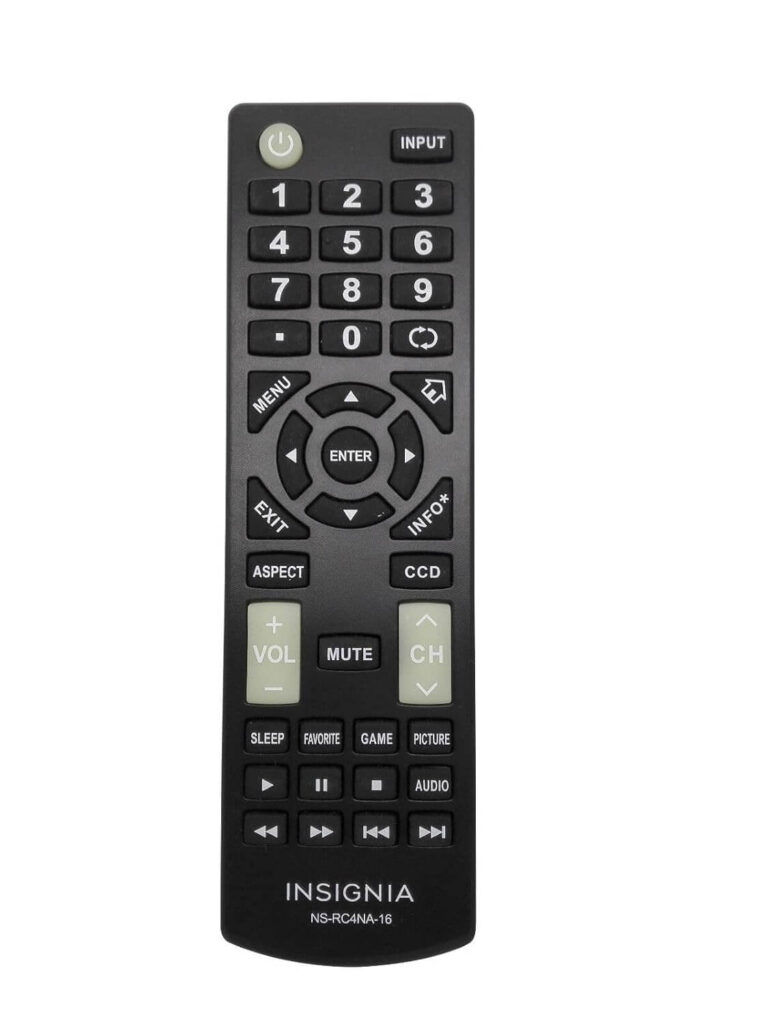
Insignia NS-RC4NA-16 TV Remote Control – Replacement LED TV Remote for Insignia Televisions
Restore Full Control of Your Insignia TV
The Insignia NS-RC4NA-16 Remote Control (model NSRC4NA16) is the official replacement remote designed to work seamlessly with a wide range of Insignia LED televisions. Whether your original remote was lost, damaged, or stopped responding, this plug-and-play solution gets you back in control — no programming, no frustration.
Compatible Insignia TV Models
This remote is precision-engineered for the following Insignia LED TV models:
- NS-55D420NA16
- NS-60E440NA16
- NS-60E440MX16
- NS-28DD220NA16
- NS-24D420NA16
If your Insignia TV is on this list, this is your remote. No guessing, no workarounds.
Key Features
- Brand: Insignia — same manufacturer as your TV, same quality you expect
- Model Number: NS-RC4NA-16 / NSRC4NA16
- Color: Classic black finish for a clean, familiar look
- Device Compatibility: Supports up to 1 television — a focused, dedicated solution with no unnecessary clutter
- Special Feature: Officially designated NS-RC4NA-16 replacement remote for Insignia LED TVs
- LED TV Optimized: Designed specifically for Insignia LED television performance and full button functionality
Why Choose the Insignia NS-RC4NA-16?
When it comes to replacement remotes, compatibility is everything. Generic universal remotes often miss buttons, require complex setup codes, or simply don’t work reliably with LED TV menus and smart functions. The Insignia NS-RC4NA-16 eliminates that uncertainty — it’s built by Insignia, for Insignia.
- ✔ Full button layout matching your original remote
- ✔ No pairing codes or syncing required
- ✔ Reliable response from any angle
- ✔ Sleek black design that fits comfortably in hand
Insignia TV Remote: The Ultimate Complete Guide
Everything You Need to Know About Insignia TV Remote Controls — Setup, Programming, Troubleshooting, Replacement, and Voice Control
Whether you just bought a new Insignia television, lost your original remote, need a replacement, or want to program a universal remote to work with your TV — this is the only guide you’ll need. We cover every Insignia TV remote model, every setup method, universal remote codes, Alexa voice commands, smartphone apps, and step-by-step troubleshooting for every common problem.
What Is an Insignia TV Remote?
Insignia is Best Buy’s exclusive in-house television brand, offering budget-friendly LED, HD, and 4K smart TVs at competitive prices. Every Insignia television ships with a dedicated remote control designed to match that TV’s platform — whether it’s an older infrared (IR) model, a Roku TV remote, or the modern Fire TV Edition remote with built-in Alexa voice control.
Current 2024–2025 Insignia models run exclusively on Amazon’s Fire TV platform, meaning you’ll likely have a Fire TV Edition remote with Alexa voice control built in. Older models might include Roku TV remotes or standard infrared remotes that require line-of-sight to function. Tech Junctions
Understanding which type of Insignia TV remote you have is the single most important first step — because each type pairs differently, troubleshoots differently, and offers different features.
Types of Insignia TV Remotes
1. Insignia Fire TV Remote (NS-RCFNA-19 / NS-RCFNA-21)
Look at the top of your remote. See a circular button with a microphone icon? That’s the Alexa voice button, and it confirms you have a Fire TV Edition remote. These use Bluetooth Low Energy (BLE) rather than traditional infrared, meaning they work without pointing directly at the TV. Tech Junctions
This is the most advanced Insignia remote type and comes with all Insignia Fire TV Edition televisions. Key features include:
- Built-in Alexa microphone for voice search and smart home control
- Bluetooth connectivity — no line-of-sight required
- Dedicated streaming shortcut buttons (Netflix, Prime Video, Disney+, and more)
- Navigation ring, Home button, Back button, Menu button
- Volume and mute controls
- Power button
The NS-RCFNA-21 is the latest version, featuring four shortcut keys and compatibility with all Insignia, Toshiba, and Pioneer Fire Smart TVs. Amazon
2. Insignia Standard IR Remote (NS-RC4NA Series)
The NS-RC4NA series — including models NS-RC4NA-14, NS-RC4NA-16, NS-RC4NA-18 — are traditional infrared remotes that require direct line-of-sight to the TV’s IR sensor. These remotes are model-specific and designed to work with a defined list of compatible Insignia LED televisions.
The NS-RC4NA-16, for example, is compatible with Insignia TV models including NS-55D420NA16, NS-60E440NA16, NS-60E440MX16, NS-28DD220NA16, and NS-24D420NA16. It features the classic black design, supports one device, and covers all core TV functions — power, volume, channel, input, and menu navigation.
The NS-RC4NA-18 is compatible with an extensive range of Insignia televisions, from compact 19-inch models to large-screen 60-inch displays, spanning model years 2014 through 2021. ReplacementRemotes.com
3. Insignia Roku TV Remote
Older Insignia smart TV models — primarily from 2018 to 2022 — ran on the Roku platform. Roku TV versions were discontinued for new Insignia models in 2023. Tech Junctions If you own a Roku-based Insignia TV, your remote includes a purple Roku button and one-press access to the Roku home screen. These remotes use both IR and private listening Wi-Fi features, depending on the specific model.
Insignia TV Remote Models: Full Compatibility List
Here is a reference list of the most common Insignia TV remote models and their primary use cases:
| Remote Model | Platform | Technology | Key Feature |
|---|---|---|---|
| NS-RC4NA-14 | Standard LED TV | Infrared | Budget IR remote |
| NS-RC4NA-16 | Standard LED TV | Infrared | LED TV optimized |
| NS-RC4NA-18 | Standard LED TV | Infrared | Wide model support |
| NS-RCFNA-19 | Fire TV Edition | Bluetooth BLE | Alexa voice |
| NS-RCFNA-21 | Fire TV Edition | Bluetooth BLE | Alexa + 4 shortcut keys |
How to Set Up and Pair Your Insignia TV Remote
Setting Up the Insignia Fire TV Remote (NS-RCFNA-21)
Insert alkaline AAA batteries. Remove the battery door and insert the batteries into your Alexa Voice Remote. Press the Home button, navigate to Settings at the top of the screen, then select Controllers & Bluetooth Devices > Voice Remotes with Alexa > Add New Remote. Your Fire TV device will search for remotes it can connect with, then display them in a list. Press and hold the Home button on the new remote for at least 10 seconds. The LED on the remote will slowly flash amber. Continue holding down the Home button until the LED starts to rapidly flash. A notification will appear on your screen indicating that your remote is successfully paired. Manuals+
Reconnecting a Disconnected Fire TV Remote
If your Insignia Fire TV remote loses its Bluetooth connection, press and hold the Home button for 10–15 seconds. Watch for the LED to flash rapidly, then release. Your remote should reconnect within 60 seconds. Tech Junctions
Setting Up the Standard IR Remote (NS-RC4NA Series)
Standard Insignia infrared remotes require no pairing. Simply insert two AAA batteries, point the remote at the TV’s IR sensor (usually located at the bottom-center of the screen bezel), and press any button. The remote works immediately without any setup process.
Insignia TV Remote: Button Functions Explained
Fire TV Remote Button Guide
- Microphone button (top): Press and hold to activate Alexa voice control
- Home button (house icon): Returns to the Fire TV home screen from any app
- Back button: Goes back one screen or menu level
- Menu/hamburger button: Opens contextual options within apps
- Navigation ring: Four-directional control for menu navigation
- Select (center button): Confirms a selection
- Rewind / Play-Pause / Fast Forward: Media playback controls
- Volume Up/Down: Adjusts TV audio output
- Mute: Silences audio instantly
- Power button: Toggles the TV on or off
- Streaming shortcuts: Direct access to Netflix, Prime Video, Disney+, and one additional service depending on model year
Standard IR Remote Button Guide
- Power: Turns the TV on/off
- CH +/–: Changes channels up or down
- VOL +/–: Raises or lowers volume
- MUTE: Toggles audio mute
- INPUT: Cycles through HDMI, AV, antenna, and other input sources
- MENU: Opens the TV’s settings menu
- Navigation arrows + OK: Moves through on-screen menus and confirms selections
- Number pad (0–9): Direct channel entry
Alexa Voice Control on Insignia Fire TV Remotes
One of the most powerful and underused features of the modern Insignia Fire TV remote is the built-in Alexa microphone. Press and hold the microphone button before speaking. A blue bar appears at the bottom of your screen, indicating Alexa is listening. Speak your command clearly, then release the button. Alexa processes your request and responds on-screen. No additional setup is required for basic voice functions — they activate automatically once your TV completes initial configuration. Tech Junctions
Most Useful Alexa Commands for Insignia Fire TV
- “Alexa, play Stranger Things on Netflix”
- “Alexa, open Prime Video”
- “Alexa, search for action movies”
- “Alexa, turn up the volume”
- “Alexa, go to settings”
- “Alexa, pause”
- “Alexa, rewind 30 seconds”
- “Alexa, what’s the weather today?”
- “Alexa, set a timer for 20 minutes”
- “Alexa, dim the living room lights” (when connected to smart home devices)
Controlling Your Insignia TV Hands-Free with Alexa Devices
If you own an Echo Dot, Echo Show, or other Alexa device, you can link it to control your Insignia Fire TV hands-free from across the room. Tech Junctions This is particularly useful when the remote is out of reach or when you want to integrate your TV into a full smart home automation setup.
Programming a Universal Remote to Your Insignia TV
Standard Insignia TV vs. Fire TV Edition: A Critical Difference
Before programming any universal remote, you must understand a fundamental technical distinction. Standard Insignia TVs rely entirely on IR signals, meaning your universal remote can control all functions. Fire TV Edition models, however, use Bluetooth for navigation and app control, while IR handles only power, volume, and input selection. Tech Junctions
This means universal remotes can control power on/off, volume up/down, mute, and input selection on Insignia Fire TV, but they cannot control Fire TV navigation, app selection, streaming playback, or voice commands. Tech Junctions
Universal Remote Codes for Insignia TVs
For most users, the code 12049 (for 5-digit remotes) or 1780 (for 4-digit remotes) gets the job done in under five minutes. Tech Junctions
Here is a comprehensive list of Insignia TV universal remote codes organized by remote brand:
5-Digit Codes (for GE, RCA, OneForAll, and similar): 12049, 11780, 14487, 11641, 11564, 11326, 11892, 12002, 12184, 11423, 11385, 11660, 11963, 12751, 13227, 11463 Manuals+
4-Digit Codes: 0103, 0189, 0217, 0135, 0133, 0116, 0167, 0456, 0029 YTECHB
Sony Universal Remotes: 068, 069, 078, 096, 100, 164, 168, 229, 026, 00171, 01204, 01423, 01564, 02049, 10675, 12428, 12596 YTECHB
Panasonic Universal Remotes: 06, 07, 15, 18, 20, 0017, 0054, 0178, 0317, 0457, 1564, 0171, 1204, 1326, 1517, 1660, 2002, 2003, 2004 YTECHB
Flipper Remotes: 0371, 0701, 0871, 1241, 1381, 2241, 2271, 2321, 2471, 2891, 2921 Manuals+
How to Program a Universal Remote to Insignia TV — Step by Step
Method 1: Using Codes
Turn on your TV. Press the device button (TV button) on the remote. Hold the Setup button until the LED light turns on. Enter the code from your programming guide. Aim the remote at the TV and hold the Power button. Release it when the TV turns off. INSIGNIA TVs
Method 2: Auto-Search (No Code Needed)
Turn on your TV, press and hold Setup on your remote, press the TV button, then repeatedly press Power until your TV turns off. When it does, press Setup to save the code. Geartrouble
Your universal remote control should also have a code search or learning feature that will help you find a working code if the listed codes don’t immediately succeed. Heartland
Testing Your Universal Remote After Programming
Test all functions including power, volume, mute, channel, and input to confirm complete control. Tech Junctions If some functions work but others don’t, try a different code from the list, as certain codes enable more complete functionality than others.
Insignia TV Remote App: Control Your TV With Your Smartphone
For Insignia Fire TV Edition
The Amazon Fire TV app serves as the official remote for Insignia Fire TV editions. This app provides complete control over your TV including voice commands, keyboard input for searches, and content casting capabilities. Geartrouble
How to set it up:
Tap your Insignia Fire TV to select it. The TV displays a 4-digit pairing code on screen. Enter the code in the app. The pairing completes within seconds, and the app remembers your TV for automatic reconnection in the future. Grant necessary permissions when prompted. Microphone access enables Alexa voice commands. Tech Junctions
Tip for stubborn connections: Some 2024–2025 Insignia Fire TV models require enabling developer options before the app can discover them. To enable: Settings > Device & Software > About > Your TV, then press the center select button on your remote 7 times rapidly. Tech Junctions
Third-Party Remote Apps
Third-party apps like “Remote for Insignia TV” or “Universal TV Remote” work with most Insignia models that support network connectivity. Wi-Fi-based apps require your TV and phone to be on the same network but offer the most functionality. Geartrouble
For phones with an IR blaster (certain Samsung, Xiaomi, and other Android models), all mobiles with an IR blaster support the Insignia TV Remote app. Functions include power, volume up/down, channel up/down, mute, input, home, previous channel, menu, keypad, multimedia buttons, and settings. Google Play
Finding the Physical Buttons on Your Insignia TV (When the Remote is Lost)
Every Insignia TV has physical controls built into the set itself, which can be used as a last resort when the remote is unavailable.
2024–2025 Fire TV models typically have a single button underneath the center of the screen, near the Insignia logo. A short press toggles power. A long press of 3–5 seconds opens a basic menu. Repeated presses cycle through inputs. Older models from 2018–2022 have a vertical row of buttons along the right side edge or back panel, typically including Power, Volume Up/Down, Channel Up/Down, Input, and Menu. On larger screens (55″+), check the back panel near the right edge, about 3 inches from the corner — buttons may be unlabeled, so feel for raised bumps. Tech Junctions
Replacing Your Insignia TV Remote: What to Buy
OEM vs. Third-Party Replacement Remotes
When your original Insignia remote is lost, broken, or stops responding, you have two options: an official OEM replacement or a compatible third-party remote.
OEM Replacement Remotes (like the NS-RC4NA-16 or NS-RCFNA-21) are manufactured by or for Insignia and guarantee complete button compatibility, full menu access, and proper function for every feature your TV supports. No programming is required — insert batteries and go.
Third-Party Replacement Remotes are widely available on Amazon, Newegg, Best Buy, and other retailers. Many upgraded third-party remotes feature chips that extend transmission distance by over 39 feet, respond quickly, and require no pairing — just insert batteries and they work immediately. Amazon However, quality varies significantly between manufacturers, and some may not support all menu and smart TV functions.
Replacement Insignia Remote: Key Specifications to Match
When shopping for a replacement Insignia TV remote, always check:
- Your TV’s model number — found on the label on the back of the TV
- Remote type required — IR (NS-RC4NA) or Fire TV Bluetooth (NS-RCFNA)
- Platform — Fire TV Edition or standard LED TV
- Model year — remotes from different years may not be cross-compatible
Insignia TV Remote Troubleshooting Guide
Problem 1: Remote Not Responding at All
The most common cause is dead batteries. Always start here before any other troubleshooting step. Replace with fresh alkaline AAA batteries and test again.
If batteries are fresh and the remote still doesn’t respond, check for IR sensor obstruction. The sensor is usually located at the bottom of the screen bezel. Remove any objects, soundbars, or decorations that may be blocking the sensor’s line of sight.
Problem 2: Fire TV Remote Disconnected
If you’re having trouble with your remote, first remove and reinsert the new alkaline batteries. Then reset your remote: place your remote within 10 feet of your Fire TV device. Manuals+ Press and hold the Home button for 10–15 seconds until the LED flashes rapidly, indicating a new pairing attempt.
Problem 3: Some Buttons Work, Others Don’t
This typically indicates a failing battery or a partially damaged remote. Try replacing batteries first. If specific buttons remain non-functional with fresh batteries, the remote’s rubber keypad membrane may be worn — a replacement remote is likely the most cost-effective solution.
Problem 4: Universal Remote Codes Don’t Work
If standard codes don’t work, first try the auto-search method: turn on your TV, press and hold Setup on your remote, press the TV button, then repeatedly press Power until your TV turns off. When it does, press Setup to save the code. Geartrouble
Also verify that you’re using the correct code format. Common causes include dead or weak batteries, incorrect code format (using 5-digit codes on a 4-digit remote), wrong code for your TV’s model year, or blocked line of sight to the IR sensor. Tech Junctions
Problem 5: Voice Control Not Working
Ensure the microphone button is being held down before speaking, not just pressed and released. If Alexa still doesn’t respond, check that your TV is connected to the internet and that Alexa services are enabled in your Fire TV settings. Re-pairing the remote through Settings > Controllers & Bluetooth Devices can resolve persistent voice issues.
Problem 6: Remote Works From Up Close But Not From Far Away
Weak batteries cause reduced IR or Bluetooth transmission range. Replace batteries. If the problem persists with a Bluetooth Fire TV remote, unpair and re-pair the device to refresh the connection.
Parental Controls and PIN Codes
Insignia TVs feature comprehensive parental controls accessible through the remote. The default PIN code for most Insignia TVs is 0000, though some models use 1234 as the initial code. Additionally, certain older Insignia models with 6-digit PIN systems default to 000000. Geartrouble
If you forget your customized PIN, try the master reset codes 0000, 1234, or 9999. For Fire TV editions, you may need to reset through your Amazon account settings. Geartrouble
Using HDMI-CEC to Control Your Insignia TV Without the Remote
HDMI-CEC (Consumer Electronics Control) is a hidden feature that many Insignia TV owners don’t know about. When enabled, it allows the remote of any connected HDMI device — a gaming console, Blu-ray player, Roku stick, or soundbar — to control basic functions of your Insignia TV, including power and volume.
If you have a streaming stick, gaming console, or soundbar connected via HDMI, its remote might already control your Insignia TV through HDMI-CEC. Tech Junctions
To enable HDMI-CEC on your Insignia TV, navigate to Settings > System > HDMI-CEC and toggle it on. The feature may be labeled differently depending on your TV model year.
Insignia TV Remote: Frequently Asked Questions
Q: Can I use a universal remote with my Insignia Fire TV? Yes, you can use a universal remote for Insignia Fire TV. Most universal remotes are capable of being programmed to work with a wide range of smart TVs, including Insignia Fire TVs. You’ll need to program the remote with the specific codes for Insignia Fire TV to ensure it can communicate and control the TV effectively. PC Guide Note that navigation and streaming functions require Bluetooth and cannot be controlled by an infrared universal remote.
Q: Can I control my Insignia TV without any remote at all? Yes. You can use the Amazon Fire TV app on your smartphone (for Fire TV Edition models), a third-party IR blaster app (for phones with an IR blaster), or the physical buttons on the TV itself.
Q: Does my Insignia remote work with a soundbar? Most Insignia TVs do not directly support syncing with soundbars through the Insignia remote. However, you can connect a soundbar via HDMI ARC, which will allow basic volume and power control in sync with the TV. For more advanced audio sync features, consider using a universal remote to control both the TV and soundbar. Insignia
Q: What batteries does the Insignia TV remote use? Both the standard IR remotes (NS-RC4NA series) and the Fire TV Edition remotes (NS-RCFNA series) use AAA alkaline batteries. The Fire TV remote requires two AAA batteries.
Q: Is the Insignia NS-RCFNA-21 compatible with Toshiba Fire TVs? Yes — this replacement voice remote is compatible with all smart TVs from Insignia, Toshiba, and Pioneer that run on the Fire TV platform. Amazon
Q: Do Insignia still make Roku TV remotes? As of early 2026, Insignia TVs sold in the United States run exclusively on Fire TV. Roku TV versions were discontinued for new Insignia models in 2023. Tech Junctions Replacement Roku remotes are still available for older Insignia models.
Q: What is the service menu code for Insignia TVs? For many Insignia TV models, the service menu can be accessed by entering 9876 followed by OK within 5 seconds. Geartrouble This is intended for technicians and advanced users only.
Quick Reference: Insignia TV Remote Codes by Universal Remote Brand
| Universal Remote Brand | Best 5-Digit Code | Best 4-Digit Code |
|---|---|---|
| GE | 12049 | 1780 |
| RCA | 12049 | 1780 |
| Philips / Magnavox | 12049 | 0103 |
| Sony | 12049 | — |
| Panasonic | 11564 | 1204 |
| Logitech Harmony | 12049 | — |
| DirecTV | 12049 | — |
| Xfinity / Comcast | 12049 | — |
| Charter / Spectrum | 12002 | 1204 |
How do I pair an Insignia TV remote?
To pair your remote, turn on your TV, press and hold the Home button for several seconds, and follow the on-screen instructions. Most remotes connect quickly.
Does the Insignia TV remote support voice control?
Yes, many models include Alexa voice control, allowing you to search content, open apps, and control playback using your voice.
Will a replacement remote work with my Insignia Fire TV?
Yes, most replacement remotes are designed specifically for Insignia Fire TVs and are fully compatible.
What should I do if my remote doesn’t connect?
Try replacing the batteries, restarting your TV, and repeating the pairing process. In some cases, it may take a few attempts to connect successfully.
Can I control my TV without the remote?
Yes, you can use the Fire TV mobile app as an alternative, but a physical remote provides the best and most convenient experience.
Customer Reviews
This replacement remote was easy to set up and worked right away with my TV. The buttons are responsive, and the layout is simple. The voice feature works really well and makes searching much faster. It feels sturdy and reliable—exactly what I needed.
Finally, a voice remote that actually works! I tried a few cheaper ones before, and they didn’t support voice properly. This one performs exactly as expected and makes using my Fire TV so much easier.
It was a little tricky to connect at first, but once it paired with my TV, it worked perfectly. No issues since then, and overall I’m very satisfied with the performance.